
The Best AI Photo Editors in 2026: 8 Tools Tested (Free & Paid)
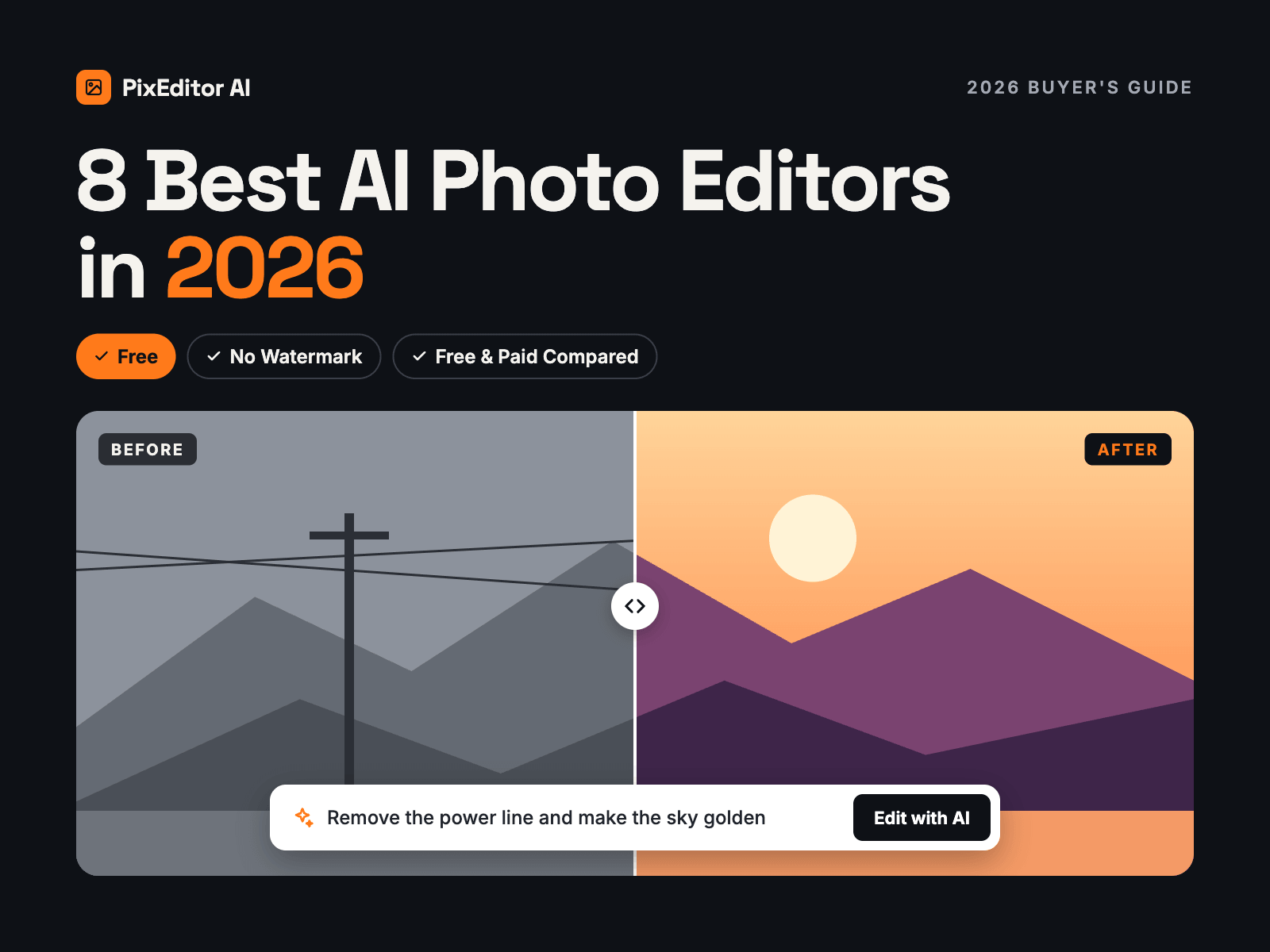
Not too long ago, removing someone you didn’t want in a vacation photo could mean spending an hour in Photoshop, carefully working with the clone stamp. Now, you can simply type something like “remove the man in the background” and let AI handle it in seconds.
That’s a pretty big change. But with so many AI photo editors available today, figuring out which one actually does a good job is not always easy. Some are great for quick edits, while others offer much more control for professional work.
The best AI photo editor really comes down to what you want to do with your images. Here are our top picks for different needs:
- Best free AI photo editor: PixEditor AI. A good starting point if you want to edit images with simple text prompts. It’s free to use, requires no sign-up, and doesn’t add watermarks.
- Best for professionals: Adobe Photoshop. Still hard to beat when you need precise editing tools and features like Generative Fill.
- Best conversational AI photo editor: Google Gemini (Nano Banana). A convenient option for making image changes just by describing what you want.
- Best desktop AI editor for photographers: Luminar Neo. A solid choice for photographers who want AI-powered tools without giving up control over their edits.
- Best for social media and marketing design: Canva. Great for creating and editing visuals for social posts, ads, and other marketing materials.
- Best for e-commerce product photos: Photoroom. Particularly useful for removing backgrounds and creating clean product images.
- Best budget online editor: Pixlr. Offers a range of editing tools for people who want a more affordable browser-based option.
- Best for upscaling and denoising: Topaz Photo. Worth considering when image detail, sharpness, and noise reduction are the main priorities.
How we tested: Rather than judging these tools by their feature lists alone, we put them through a similar set of editing tasks using the same test images.
We tested background removal, object removal, lighting adjustments, and text-prompt editing to see how each tool handled everyday editing needs. We also looked at image quality, ease of use, processing speed, and how much you can actually do without paying.
The Best AI Photo Editors at a Glance
If you’re short on time, this table gives you a quick overview of each tool, including who it’s best for, where you can use it, and what you get for free.
| Tool | Best for | Key AI features |
|---|---|---|
| PixEditor AI | Free, quick edits from text prompts | Prompt editing, background removal, object and watermark removal, photo restoration |
| Adobe Photoshop | Professional, precise editing | Generative Fill, Generative Expand, Remove tool, Neural Filters |
| Google Gemini (Nano Banana) | Conversational edits and image transformations | Text-prompt editing, multi-image blending, local edits |
| Luminar Neo | Photographers who want AI on the desktop | Sky replacement, portrait retouching, GenErase, relighting |
| Canva | Social media and marketing design | Magic Edit, Magic Eraser, Background Remover, Magic Expand |
| Photoroom | E-commerce product photos | Background removal, AI backgrounds, AI shadows, batch editing |
| Pixlr | Budget online editing | Generative Fill, background removal, AI image generator |
| Topaz Photo | Denoising, sharpening, upscaling | AI denoise, sharpen, upscale, face recovery |
What Makes a Good AI Photo Editor?
1. Editing quality and accuracy
2. Ease of use
3. What you actually get for free
4. Editing speed
5. Privacy and image handling
The 8 Best AI Photo Editors in 2026
1. PixEditor AI: Best Free AI Photo Editor (No Sign-Up)
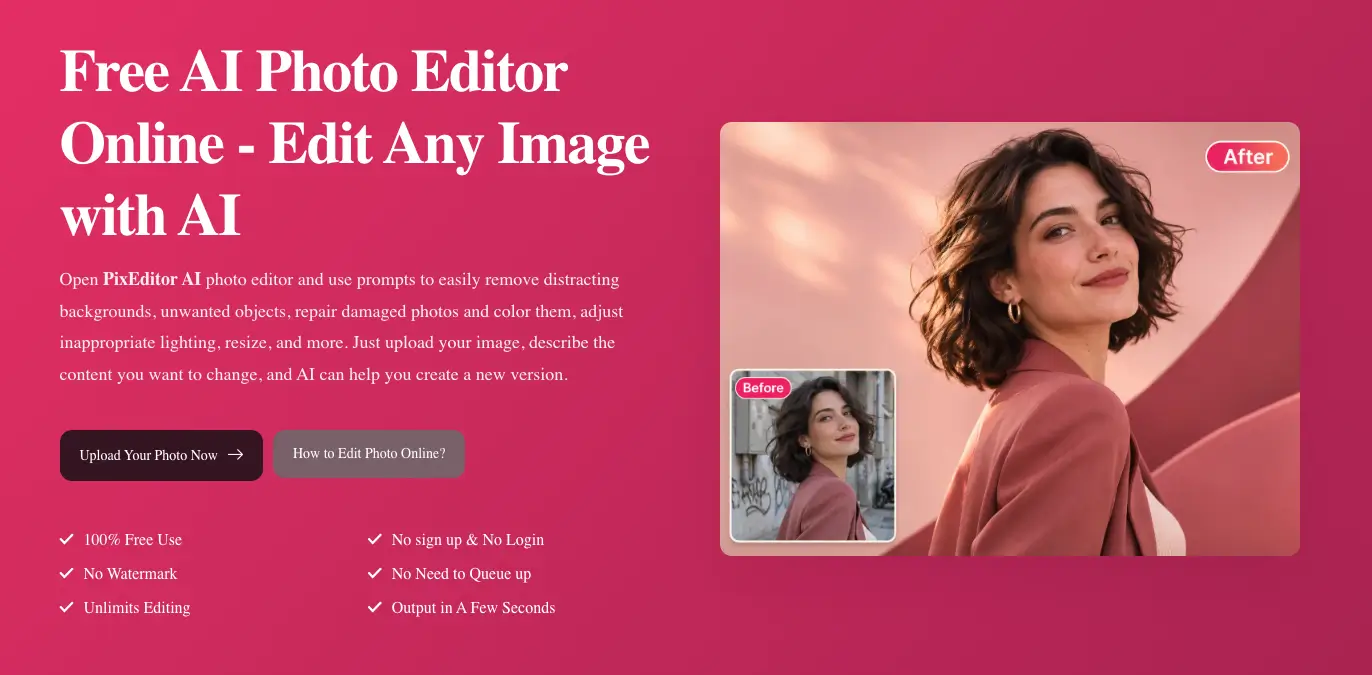
PixEditor AI is an online AI photo editor that keeps things simple. Instead of working with layers, masks, or brushes, you just upload a photo and describe what you want to change. For example, you can type “replace the background with a white studio wall” and let the AI handle the edit. It’s a straightforward way to make quick changes without spending time learning traditional editing software.
Key features
- Text-prompt editing: Describe the changes you want in plain language, whether that’s adding something, removing an object, or changing part of an image. It also supports prompts in different languages.
- Background editing: Remove an existing background or replace it with a transparent, white, green-screen, solid-color, or custom uploaded background.
- Object, text, and watermark removal: Get rid of unwanted objects, people in the background, logos, or text that distracts from the image.
- Photo restoration: Bring old or damaged photos back to life, colorize black-and-white images, and improve image details.
- Lighting and color adjustments: Fix uneven lighting, change the overall tone, or adjust the color of individual objects.
- Style changes: Try different filters, experiment with hairstyles, or see how different outfits look with AI hairstyle and clothes changers.
- Image upscaling: Use the AI Photo Upscaler to improve the resolution of smaller or lower-quality images.
Pros
- Completely free to use, with no sign-up or watermarks
- Easy to get started, even if you have no photo editing experience.
- Includes a useful range of tools for everyday editing, from background removal to photo restoration.
- Uploaded images are deleted after 24 hours
Cons
- AI doesn’t always get every detail right. It may occasionally change parts of an image you wanted to keep, so it’s worth checking faces, text, and logos before downloading.
- No layers or manual masks, which can be limiting if you need very precise edits.
- Only available in a web browser, with no dedicated desktop or mobile app.
- Supports JPG, PNG, and WEBP, but doesn’t support RAW files.
Pricing: Free.
Best for: Online sellers, content creators, small businesses, and anyone who needs to make quick photo edits without paying for software or spending time learning complicated editing tools.
2. Adobe Photoshop: Best for Professionals
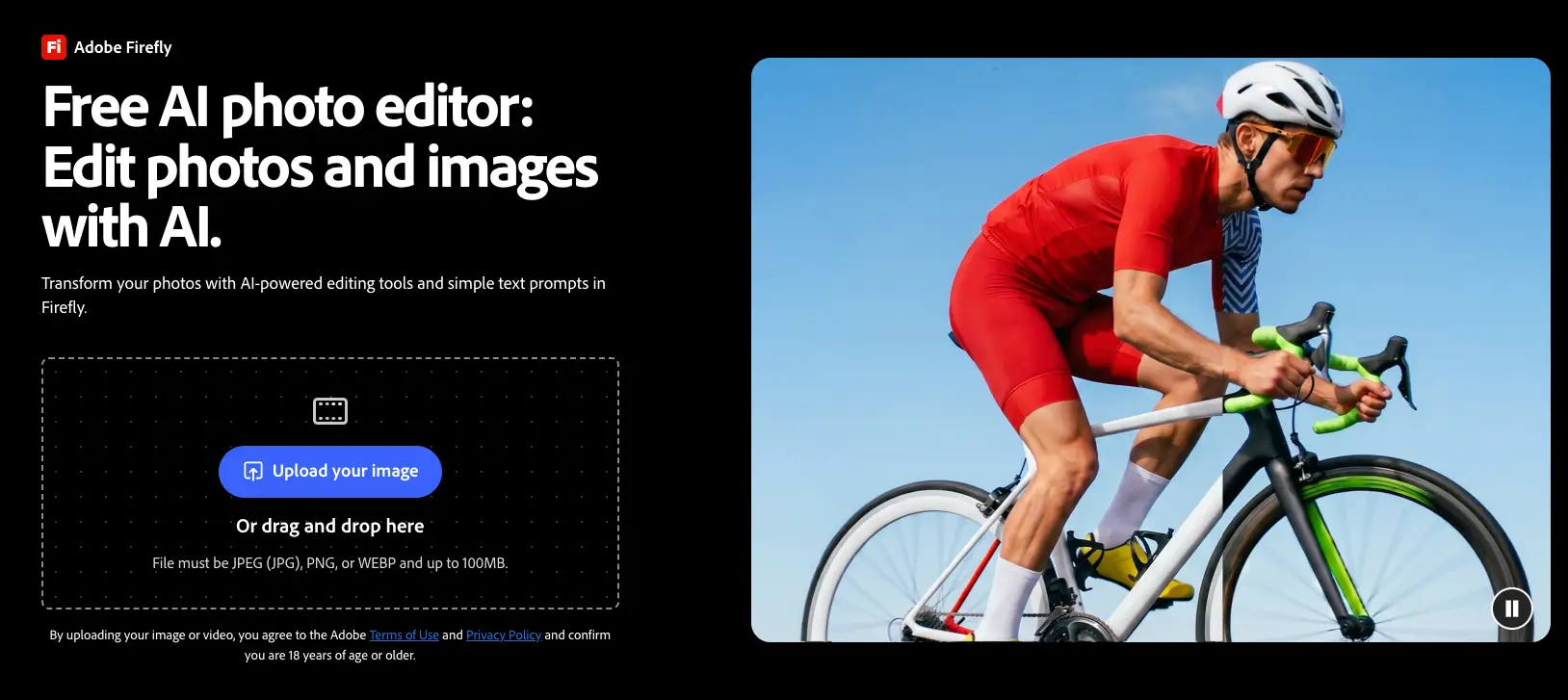
What really makes Photoshop different from simpler AI photo editors is the level of control it gives you. You can use AI to make the initial changes, then fine-tune the results with layers, masks, and manual retouching. It’s especially useful when you need more than a quick edit and want everything to look just right.
Pros
- Offers more precise editing control than other tools on this list.
- AI-generated changes can be kept on separate layers, making them easier to adjust or undo.
- Widely used by professionals, with plenty of tutorials, plugins, and community support.
Cons
- Takes time to learn, especially if you’re new to photo editing.
- Requires a paid subscription.
- Generative AI features come with monthly credits, and the amount you get depends on your plan
Pricing: Adobe’s Photography plan, which includes Photoshop and Lightroom, costs around $19.99/month with annual billing. A 7-day free trial is available. Generative credit allowances vary by plan, so check Adobe’s pricing page for the latest details.
Best for: Professional photographers, graphic designers, and retouchers who need detailed control over their edits, especially when working on client projects.
3. Google Gemini (Nano Banana): Best Conversational Editor from Big Tech
Where Gemini really stands out is creative editing. It handles larger changes quite well, such as transforming an entire scene, combining multiple images, or giving a photo a completely different look. However, if you need to make the same edits repeatedly, the daily usage limits on its more capable models can become a bit frustrating.
Pros
- Handles complex and creative image transformations well
- Chat-based editing makes it easy to refine an image step by step
- You can try it for free with a Google account
Cons
- Images generated by free and lower-tier users may include a visible Gemini watermark
- Free access to the more capable models comes with daily limits, which Google may adjust over time
- Sometimes changes more of the original image than you actually asked for
Pricing: Free access is available with daily usage limits. Paid Google AI plans offer higher limits, while visible watermark removal depends on the subscription tier. Check Google’s current plan details for the latest restrictions.
Best for: Anyone who enjoys experimenting with creative image edits or wants to transform photos through simple chat instructions, rather than making precise, repeatable adjustments.
4. Luminar Neo: Best Desktop AI Editor for Photographers
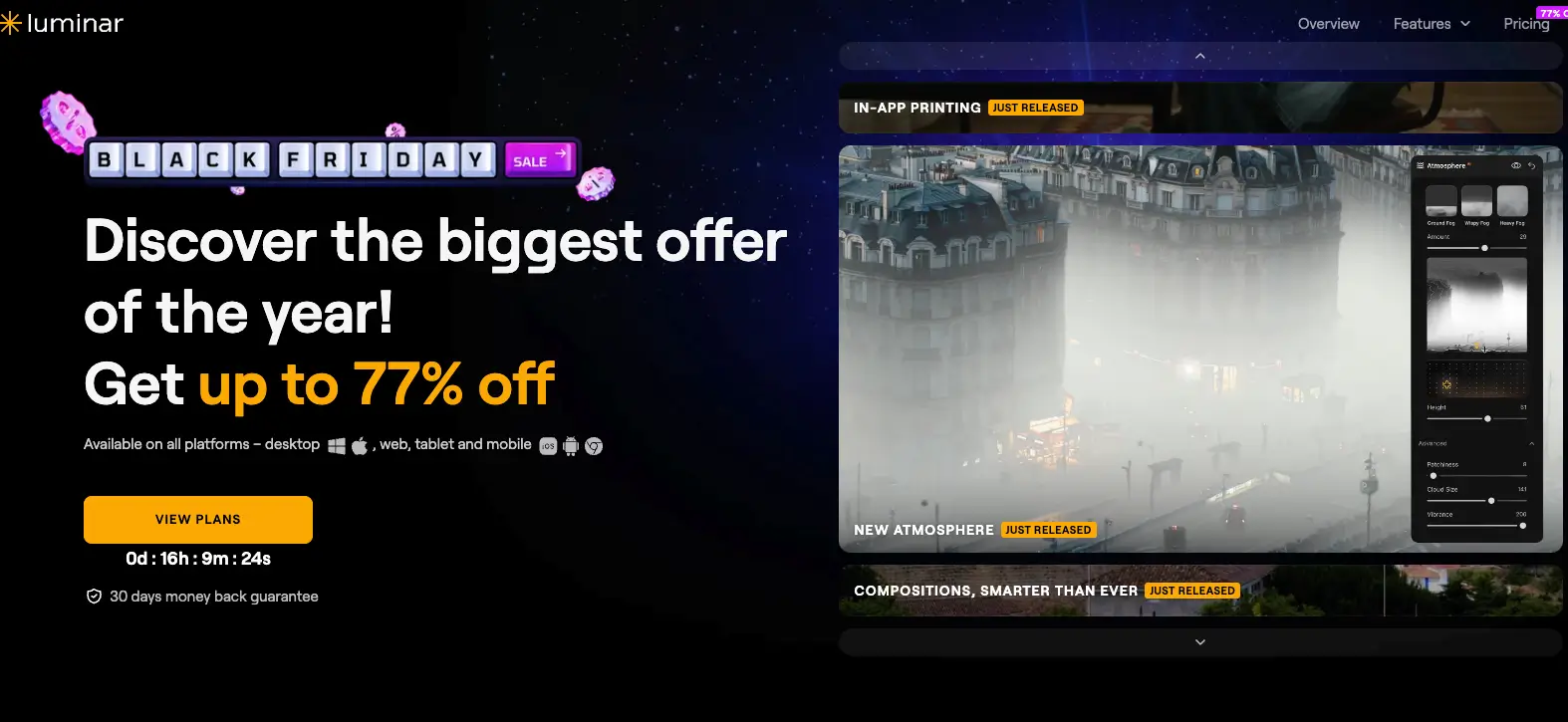
It’s a good fit for photographers who want to improve their images without dealing with the learning curve of Photoshop. Landscape and portrait photographers, in particular, will find plenty of useful tools here.
Pros
- Great tools for editing landscapes and portraits
- Can be used on its own or as a plugin for Lightroom and Photoshop
- Offers a one-time purchase option for users who prefer not to pay a monthly subscription
Cons
- Requires a desktop computer running Windows or macOS
- Some generative AI features and additional creative tools may require a renewed subscription after the first year
- Uses more system resources than lightweight, browser-based editors
Pricing: Desktop licenses start at around $119 for a one-time purchase, while higher-tier plans include additional features and mobile access. Skylum also runs discounts fairly often, so it’s worth checking the current offers.
Best for: Hobbyist and enthusiast photographers who mainly work on a computer and want an easier way to edit landscapes, travel photos, and portraits without learning a complex editing workflow.
5. Canva: Best for Social Media and Marketing Design
Pros
- Edit photos and create finished designs in one place
- Large library of templates for different needs
- Useful collaboration features and shared brand kits for teams
Cons
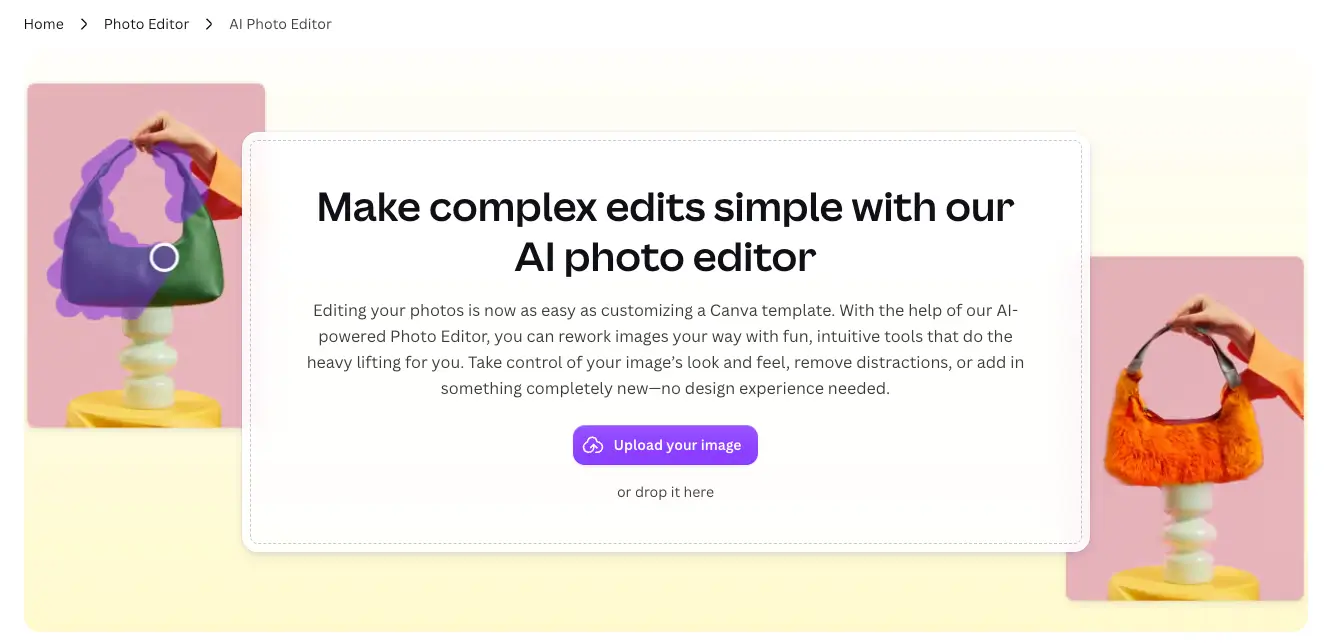
- AI photo editing isn’t its main focus
- Free plan has AI usage limits, and Background Remover requires Canva Pro
- Less precise than dedicated photo editing tools
Pricing: A free plan is available. Canva Pro costs around $15/month or $120/year, depending on your region.
Best for: Marketers, social media managers, and small businesses that regularly create visual content.
6. Photoroom: Best for E-commerce Product Photos
Pros
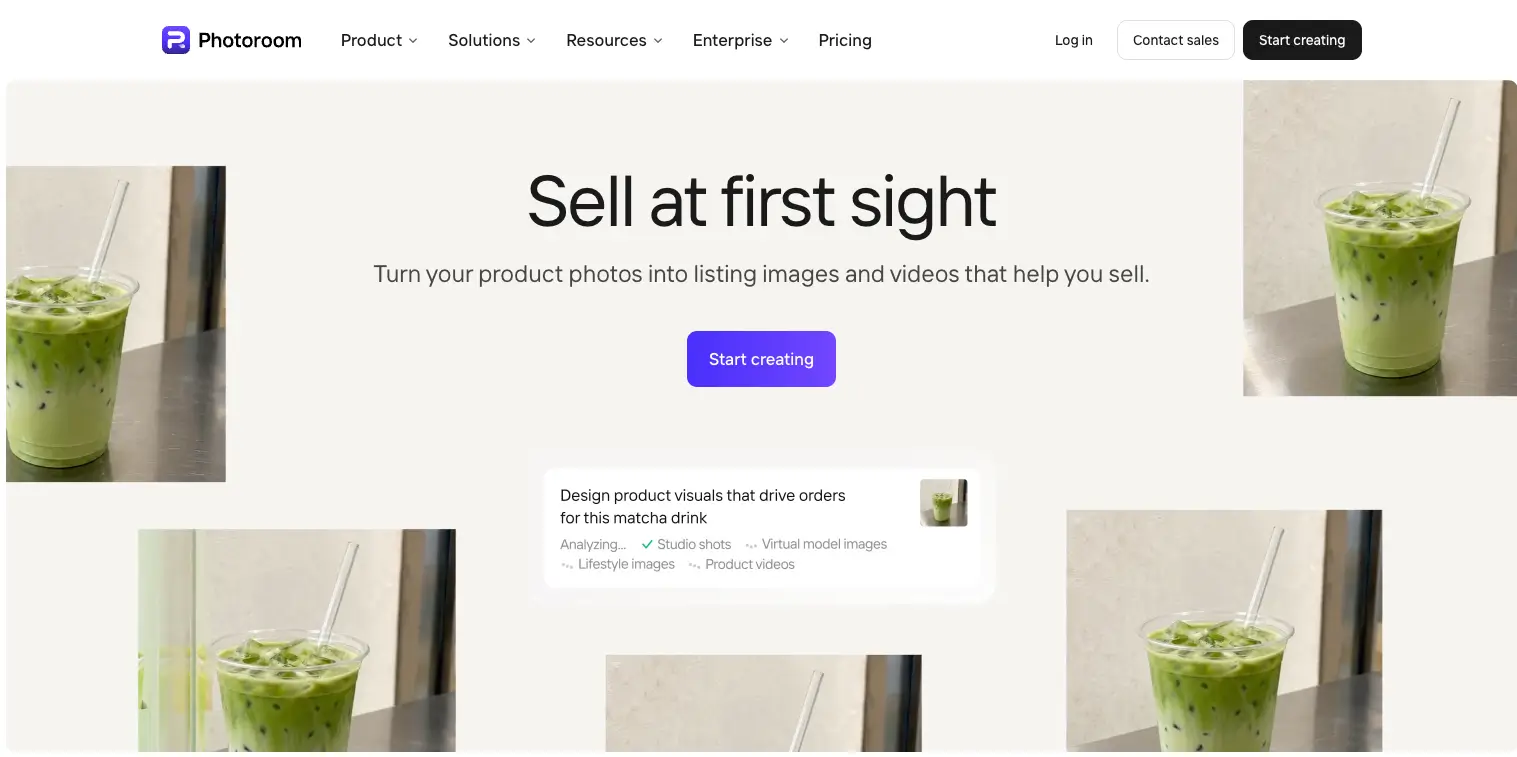
- Clean background removal, even around product edges
- AI backgrounds and shadows designed for product listings
- Batch editing saves time when working with large product catalogs
Cons
- Free exports include a Photoroom watermark
- Mainly focused on product photos, so it’s less suitable for general image editing
- Costs can add up if you need higher-volume editing
Pricing: Pro costs $12.99/month, or around $7.50/month with annual billing. It includes 8,000 AI credits and 1,000 exports.
Best for: Online sellers who regularly edit product photos, especially when working with large catalogs.
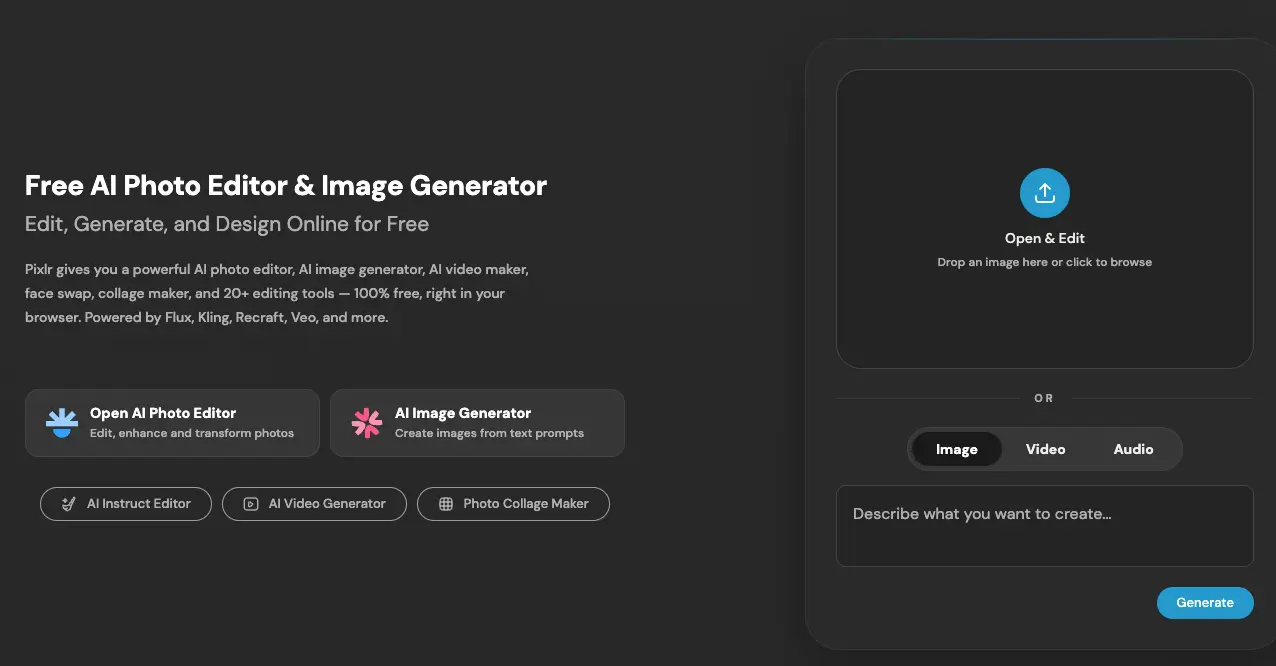
7. Pixlr: Best Budget Online Editor
Pros
- Works directly in your browser, with both simple and advanced editing modes
- Affordable paid plans
- Supports layers for more detailed editing
Cons
- Free plan includes ads and offers limited access to AI features
- Unused AI credits expire each month and don’t roll over
Pricing: Free plan available with ads. Plus starts at $2.49/month, while Premium costs $9.99/month ($7.99/month with annual billing).
Best for: Budget-conscious users who want both traditional editing tools and AI features in one browser-based editor.
8. Topaz Photo: Best for Upscaling and Denoising
Pros
- Excellent results for noise reduction and sharpening
- Great for upscaling images for large prints
- Works as a plugin for Lightroom and Photoshop
Cons
- No generative editing tools for removing objects or changing backgrounds
- Subscription only, following the end of perpetual licenses
- Can be expensive if you only edit photos occasionally
Pricing: $199/year or $39/month with no long-term commitment.
Best for: Photographers who often shoot in low light, work with blurry images, or need high-resolution photos for printing.
How to Edit a Photo with AI in 3 Steps (Using PixEditor)
Editing a photo with PixEditor is simple and takes about a minute. No account needed.
1. Upload your photo. Visit PixEditor AI and upload a JPG, PNG, or WEBP image. For better results, use the original photo instead of a screenshot.
2. Describe what you want to change. Enter a simple prompt, such as “remove the people in the background” or “make the lighting warmer.” You can write in your own language.
3. Check and download. Once the edit is ready, take a closer look at the details. If everything looks good, download your image without a watermark.
Tips for Getting Better Results with AI Photo Editors
A few simple tips can help you get better results when editing photos with AI.
- Use a good original photo. Upload the original file whenever possible, rather than a screenshot or a compressed image from a messaging app.
- Be clear about what you want. Mention the object and where it is. For example, “remove the lamp on the left side of the table.”
- Edit one thing at a time. Trying to change too many things in one prompt can lead to unexpected results. It’s usually better to make changes step by step.
- Describe the look you want. Instead of saying “fix the lighting,” try something like “make the lighting brighter and more natural.”
- Check the details before downloading. Take a closer look at faces, hands, text, and logos, as these are areas where AI can make mistakes.
- Keep a copy of the original. That way, you can always go back and try again if the result isn’t quite right.
- Check the usage rights. If you’re using the edited photo commercially, make sure you have the rights to the original image and check the editor’s terms.
Final Thoughts: Which AI Photo Editor Should You Choose?
It really depends on what you need. Here’s a quick recap to help you decide:
- For free, quick edits: PixEditor AI. No sign-up or watermark.
- For professional editing: Photoshop offers the most control.
- For creative AI edits: Google Gemini makes chat-based editing easy.
- For landscape and portrait photography: Luminar Neo is worth a look.
- For social media designs: Canva keeps editing and design in one place.
- For product photos: Photoroom is great for online sellers.
- For budget-friendly editing: Pixlr offers a good mix of tools.
- For image enhancement: Topaz Photo is great for sharpening and upscaling.
Still not sure which one to try? Start with PixEditor AI. Upload a photo, describe the changes you want, and see what AI can do. It’s free, with no sign-up or watermark.
Frequently Asked Questions
What is the best free AI photo editor?
PixEditor AI is a good choice if you want free editing without signing up or dealing with watermarks. It handles common tasks like background removal, object removal, and photo restoration using simple text prompts. Canva, Pixlr, and Gemini also offer free plans, but come with some limitations.
Is there an AI photo editor with no watermark?
Yes. PixEditor AI lets you download edited images without watermarks, even on its free plan. Some other tools, such as Photoroom and Gemini, may add visible watermarks to free results.
Can AI edit photos using text prompts?
Yes. Tools like PixEditor AI and Google Gemini let you describe the changes you want in plain language, such as “remove the person on the left.” Photoshop’s Generative Fill and Canva’s Magic Edit also support text-based editing.
Is it safe to upload photos to an AI photo editor?
It depends on the tool. Check its privacy policy to see how your images are stored and whether they’re used for other purposes. PixEditor AI, for example, deletes uploaded images after 24 hours. It’s best to avoid uploading sensitive photos or documents.
Which AI photo editor is best for beginners?
Prompt-based editors are usually the easiest to use because you just describe what you want instead of learning complicated editing tools. PixEditor AI is a good place to start, while Canva is another beginner-friendly option for creating social media graphics.
Can AI photo editors replace Photoshop?
For everyday edits, many AI tools can do the job. But Photoshop is still a better choice for detailed retouching, complex compositions, and professional work. Many people use AI editors for quick changes and Photoshop for the final touches.